Index
- Overview
- Why Use This Simulator
- Features
- Visualization & Interaction
- Getting Started
- Running the Simulator
- Excel Configuration
- Why Excel?
- GitHub Repository
- License
- Example: Two Pistons Configuration
Overview
The Multi-Piston Simulator is a modular Python project designed to simulate industrial piston systems with realistic control, sensors, and fault behavior. It is aimed at engineers, researchers, and students who want to understand, test, or demonstrate automation concepts without physical hardware.
This simulator is particularly useful for:
- Education: visualizing the dynamics of pistons, sensors, and commands in real time.
- Research & Development: testing PLC logic, Modbus communication, or control algorithms.
- Prototyping: quickly iterating piston configurations before moving to real hardware.
Why Use This Simulator
- Safe and fast experimentation: test different piston configurations, command strategies, and faults without risk or cost.
- Fully configurable via Excel: change number of pistons, strokes, sensors, and control modes in seconds.
- Visual feedback: intuitive visualization of pistons, rods, sensors, and commands.
- Modular and extendable: easy to integrate PLC logic, Modbus interfaces, or new simulation features.
- Consistency across simulations: all pistons share the same scaling and behavior, making comparisons reliable.
- Fault simulation included: block pistons to test emergency response, logic handling, or PLC reaction.
This makes it ideal for anyone looking to learn automation, validate control logic, or showcase industrial simulation skills.
Features
- Multi-piston simulation with independent movement.
- Extend and retract commands with single or double command modes.
- Endstop sensors with color indicators (green = active, red = inactive).
- Fault simulation (blocking pistons).
- Labels for each piston, fully configurable via Excel.
- Real-time animation using Matplotlib.
- Optional Modbus TCP interface for external control and monitoring.
Visualization & Interaction
The simulator provides clear visual feedback for each piston:
- Cylinder and rod: motion accurately reflects stroke configuration.
- Piston head: moves with rod to show current position.
- Endstop sensors: indicate whether pistons are fully retracted or extended.
- Command indicators: show which commands are active in real time.
- Fault indicators: simulate blocked pistons for testing emergency response.
This makes it possible to observe control logic and physical response simultaneously, bridging the gap between theory and practice.
Getting Started
Requirements
- Python 3.8+
- Libraries:
pandas,matplotlib,openpyxl,pyModbusTCP(if using Modbus) - Excel for configuration
Install dependencies:
pip install pandas matplotlib openpyxl pyModbusTCP
Running the Simulator
Clone the repository:
git clone https://github.com/aa9772/piston-sim.git
cd piston-sim
Run the simulator with the default configuration:
python -m piston_sim.main
Or specify a custom Excel file:
python -m piston_sim.main path_to_your_excel.xlsx
Excel Configuration
Pistons are fully configurable via Excel. Configure:
| Column | Description |
|---|---|
| ID | Piston identifier |
| Label | Displayed label above piston |
| Stroke | Maximum piston extension |
| Sensor Retract | ‘Yes’ or ‘No’ |
| Sensor Extend | ‘Yes’ or ‘No’ |
| Single/Double Command | ‘Single’ or ‘Double’ command mode |
| Speed | Optional, piston movement speed |
Why Excel?
- Non-technical users can change piston setup without editing code.
- Quick experimentation with different numbers of pistons or stroke lengths.
- Easily integrates with PLC and Modbus simulation logic.
GitHub Repository
Full source code, releases, and updates are available on GitHub:
https://github.com/aa9772/piston-sim
License
This project is licensed under the MIT License.
Example: Two Pistons Configuration
We will simulate two pistons with different setups:
Piston Configurations
-
Piston A
- Double Command
- Both sensors are present
- This piston can extend and retract independently, with full sensor feedback.
-
Piston B
- Single Command
- Only the extended sensor is present
- This piston only detects the extended position, limiting control options.
You can see the Excel configuration file here:
Download Piston Configuration
This file contains the setup parameters for each piston, including command type and sensor presence.
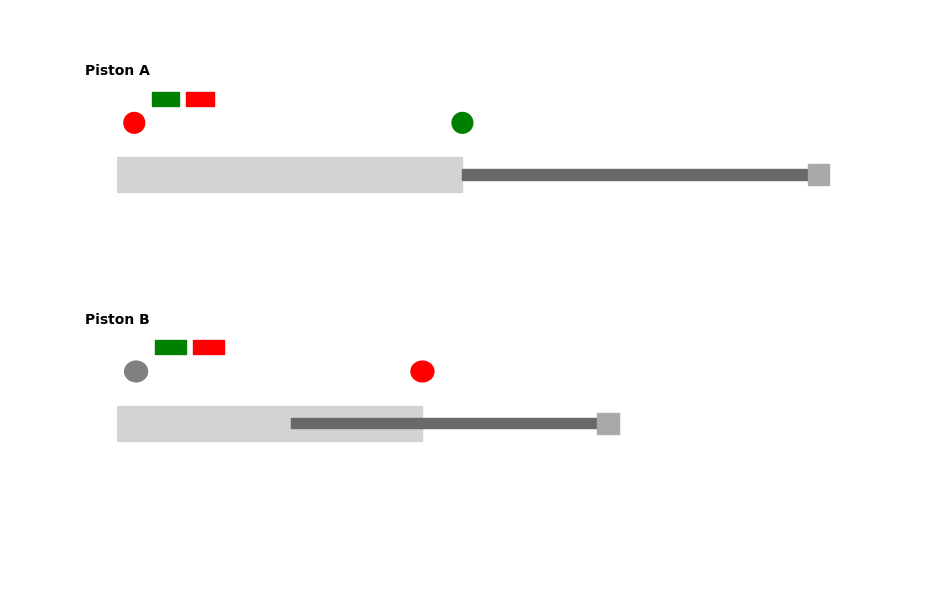
Output of the configuration:
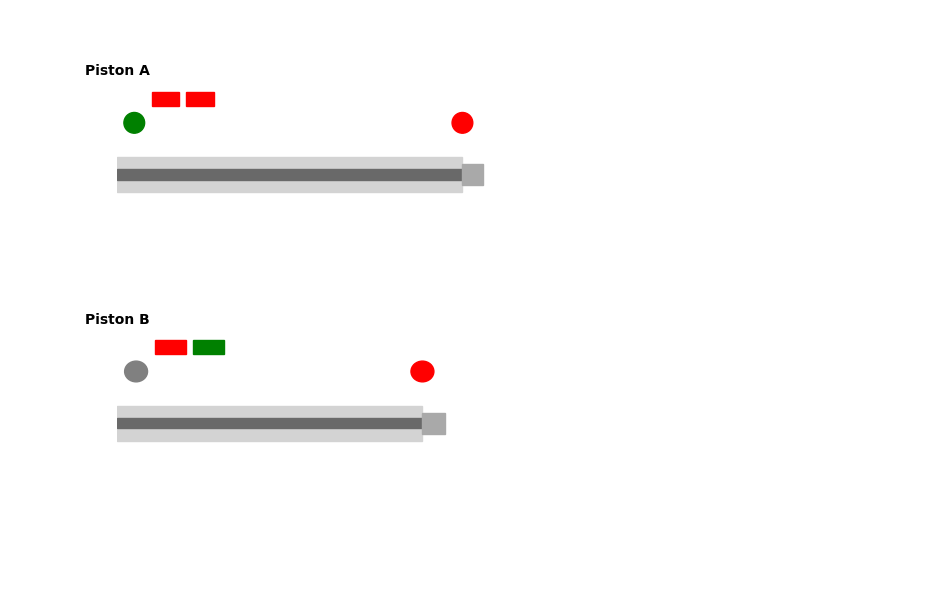
Diagram showing how the pistons are configured according to the Excel file.
Modbus Master Setup
- IP: localhost (or 127.0.0.1)
- Port: 5020
We use ModbusTools as the Modbus Master:
ModbusTools
This software simulates a Modbus client to control the pistons.
Client configuration file:
Download Client Configuration
Contains the mapping of Modbus addresses and commands for each piston.
Client GUI Screenshot:
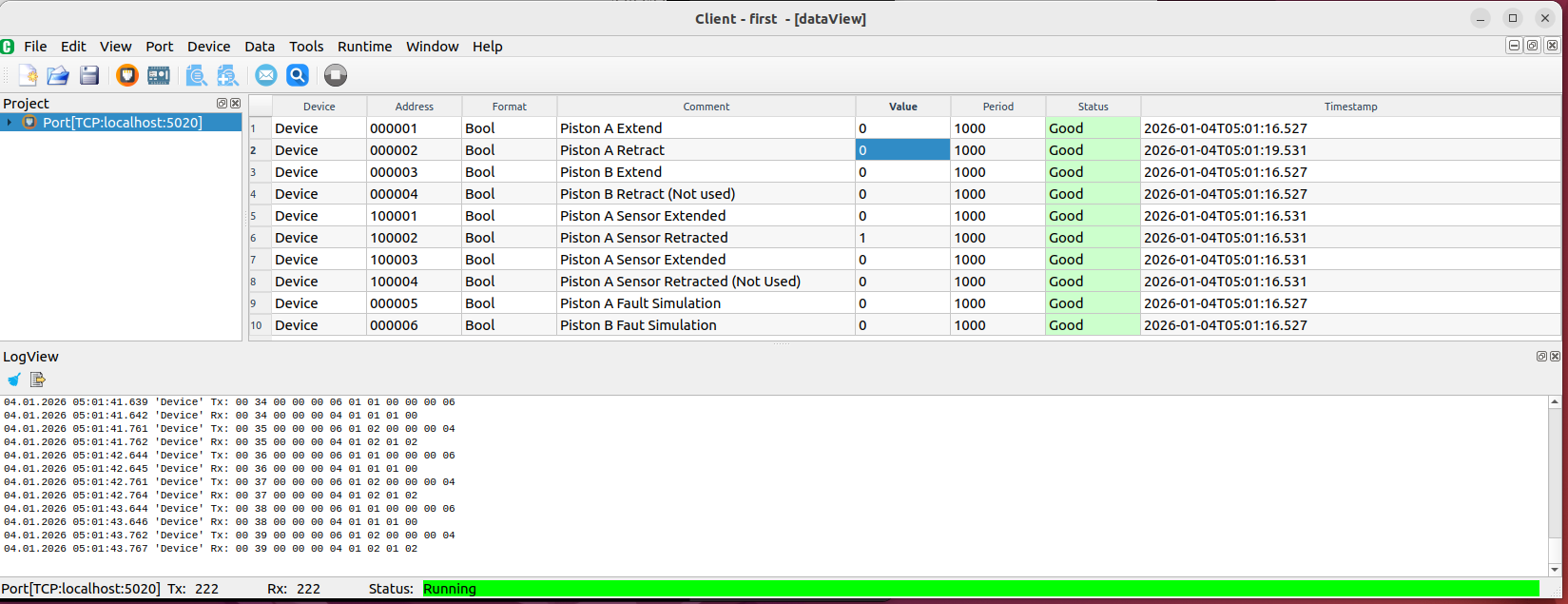
Shows the Modbus client interface with pistons listed and ready to be controlled.
Execution Example: Piston A Extension
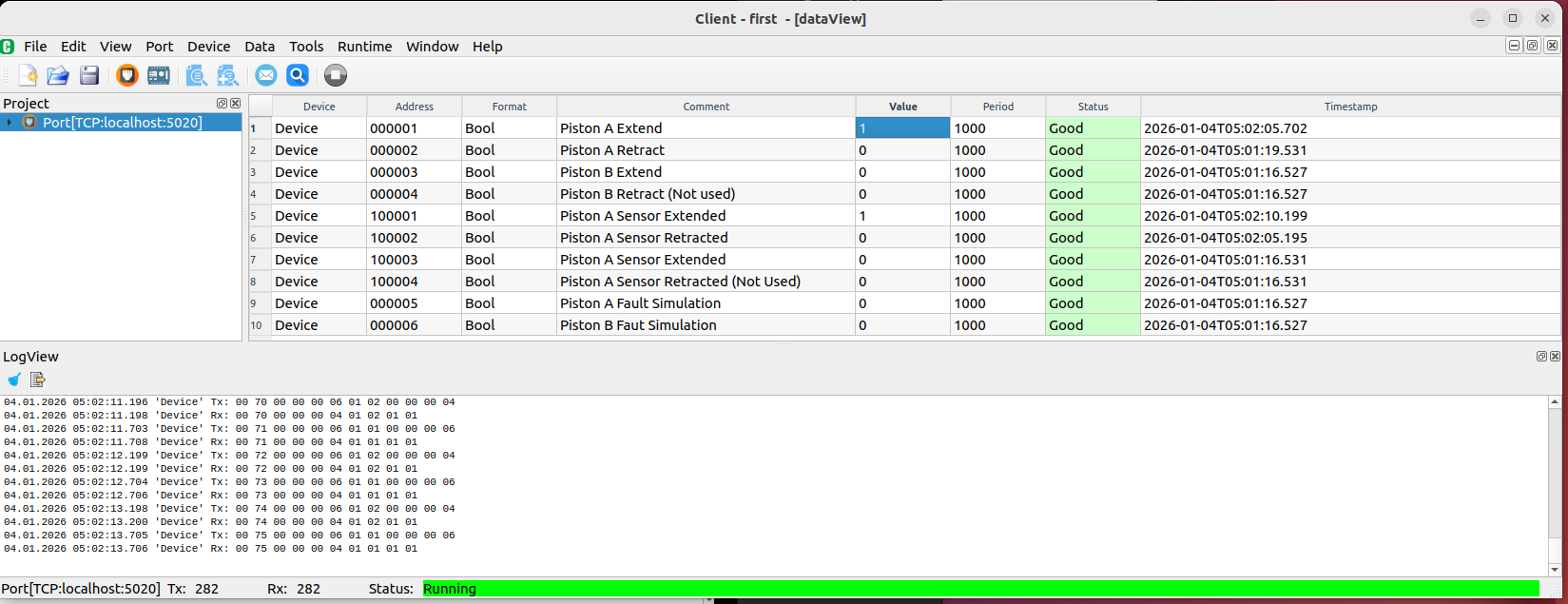
This screenshot shows Piston A extending under Modbus command, verifying that sensors respond correctly.
Result:
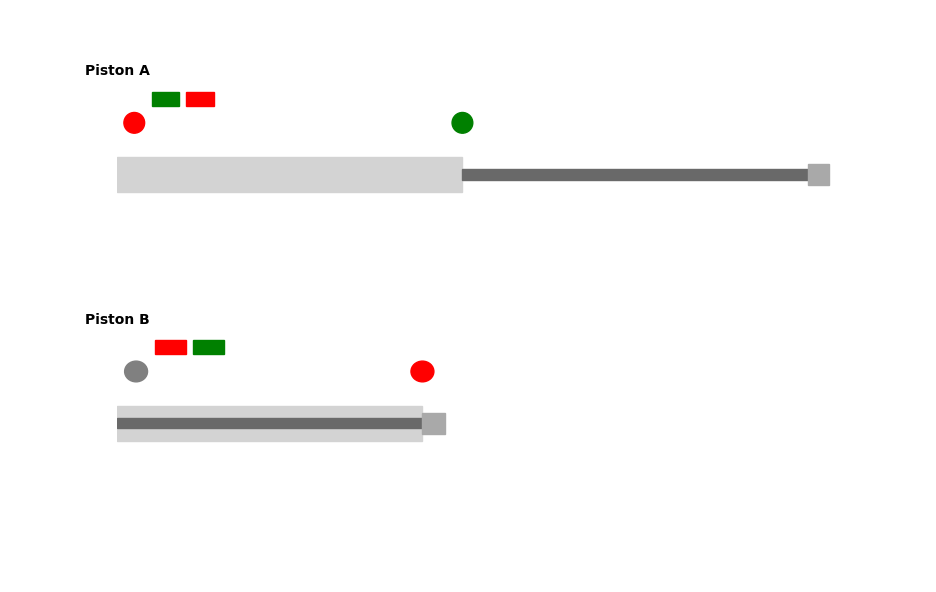
Graphical output of Piston A’s motion and sensor feedback over time.
Fault Simulation
Modbus Fault Simulation:

Demonstrates a simulated Modbus fault during piston operation.
Fault Result:
Shows how the system reacts to the fault, including sensor and command status.